Fido2 showdown: An Introduction
Fido2 security keys why would you want them, what kinds do you have and which one suits your need. This is what you’re going to find out the next couple of days.
Series: Fido2
Why a showdown?
So time ago I make a post on LinkedIn that just exploded. I bought a bunch of Yubico security keys questioning the pricing of these things. Other brands where recommended and I decided to put them to the test.
What will be tested
Fido2 keys come in different form factors and with different features, for now I’m planning to compare the keys in these groups with each other:
- Keychain security keys USB and NFC
- Security keys with fingerprint
- Small security keys (those would probably stay in your laptop)
- Other form factors
Are you a vendor of security keys and thing your devices should also be in the comparison, connect with me on LinkedIn and sent me a message.
Why Fido2 (or passkeys)
Physical security keys, allow you to login to websites without a password, the protocol uses the url as part of the cryptographic challenge. Meaning that by design this way of authentication is not vulnerable to most forms of men-in-the-middle attacks.
Using physical security keys is often seen as the most secure way to login to a website. You need a separate device that handles the authentication. So to impersonate me, the attacker would need my security device which is protected with a pin and/or a fingerprint (depending on the model).
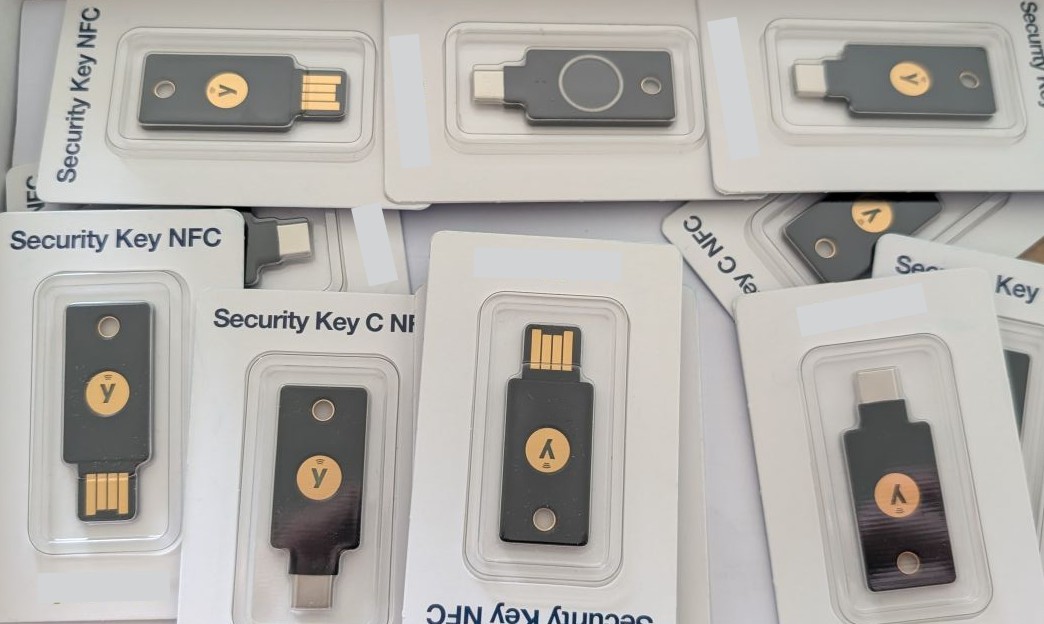
Bunch of Fido2 keys
Fido2 registration
First a security key has to be registered onto your account.
Fido2 authentication
After your key is added to your account you can use it for authentication.